Category: User Guides

Step-by-step guides for using Modulaw.ai

  • Your First Case – Start to Finish

    Welcome to Modulaw.ai. This 10-minute tutorial walks you through your first case from start to finish, using a realistic Nigerian litigation scenario: Mrs. Adaobi Okeke v Zedi Bank Plc a wrongful dishonour of cheque and breach of contract claim.

    By the end, you will have:

    1. set up your workspace,
    2. onboarded a client,
    3. created a case,
    4. researched the law,
    5. drafted a written address,
    6. File to the court portal. Let’s go.

    Phase 1: Getting Started — Your Workspace

    Every case lives inside a workspace. Think of it as your digital chambers, it holds your team, your cases, your documents, and your integrations.

    Step 1: Create Your Workspace

    Click Case Management Mode at the bottom left of the interface, then say:

    Create a new workspace called ‘Okudili Chambers‘”

    Modulaw will render a form. Fill in:
    Workspace Name: Okudili Chambers
    Description: Full-service litigation and corporate practice
    Practice Areas: Litigation, Corporate, Property

    Click Create Your workspace is live.

    Step 2: Invite Your Team

    > “Invite chidi@Okudili.com as a member with role ‘Associate‘”

    Repeat for each team member. They’ll receive email invitations.

    Step 3: Connect Your Integrations

    Modulaw works with your existing tools. Connect:
    Zoho Mail – for client correspondence
    Google Calendar – for court dates and deadlines
    OneDrive / Zoho WorkDrive – for document storage

    Go to Integrations at the sidebar and click on the tool you wish to connect, fill in the required fields then continue. Each connection takes less than 30 seconds.

    Phase 2: Onboard Your Client

    Mrs. Adaobi Okeke walks into your office. She issued a cheque for ₦5,000,000 to a supplier, but Zedi Bank wrongfully dishonoured it despite sufficient funds in her account. The supplier is now threatening legal action against her, and she wants to sue the bank.

    Step 1: Create the Client Record

    “Add a new client: Mrs. Adaobi Okeke, email adaobi@email.com, phone 0803-456-7890”

    Modulaw creates the client profile. All future correspondence, documents, and billing for Mrs. Okeke will be linked here.

    Step 2: Send the Intake Form

    “Send the client intake form to Adaobi Okeke”

    She receives an email with a secure link. She fills in her details, uploads the dishonoured cheque copy, bank statements, and the supplier’s demand letter — all of which land in her client file automatically.

    Phase 3: Create the Case

    Step 1: Open the Case

    “Create a new case: ‘Mrs. Adaobi Okeke v Zedi Bank Plc’ in Okudili Chambers”

    Fill in:
    – Case Type: Civil Litigation
    – Court: High Court of Lagos State
    – Practice Area: Banking & Finance / Contract
    – Cause of Action: Wrongful dishonour of cheque, breach of banker-customer contract
    – Claim Amount: ₦15,000,000 (special and general damages)
    – Client: Adaobi Okeke (linked automatically)

    Step 2: Set Key Dates

    > “Add a deadline: ‘File Writ of Summons’ due 21 July 2026”
    > “Add a deadline: ‘File Written Address’ due 4 August 2026”

    These appear on your dashboard and sync to Google Calendar.

    Phase 4: Research the Law

    Before drafting, you need the authorities. Click on back to Chat

    Step 1: Find the Governing Statute

    “What does the law say about wrongful dishonour of cheques in Nigeria?”

    Modulaw’s statutes chat feature returns the relevant provisions and principles from the banker-customer relationship.

    Step 2: Find Case Law

    “Find Nigerian cases on wrongful dishonour of cheque and damages”

    The case law expert returns leading authorities. Key cases typically include principles on:
    – The bank’s duty to honour cheques when funds are sufficient
    – The measure of damages for wrongful dishonour
    – The distinction between trader and non-trader claimants

    Step 3: Check for Contradictions

    “Check for contradictions to the wrongful dishonour authorities”

    The contradiction checker flags any conflicting decisions, distinguishes cases, and gives you a risk assessment. This is critical — you don’t want to walk into court relying on overturned authority.

    Phase 5: Draft the Written Address

    Step 1: Generate the Draft

    “Draft a written address for Mrs. Adaobi Okeke v Zedi Bank Plc at the High Court of Lagos State. The claim is for wrongful dishonour of cheque and breach of banker-customer contract. Claimant seeks ₦15,000,000 in damages.”

    Modulaw opens the Canvas with a full written address containing:
    Introduction — parties, suit number placeholder, jurisdiction
    Brief Facts — the dishonoured cheque, sufficient funds, supplier’s threat
    Issues for Determination— 3–4 crisp legal questions
    Legal Argument — each issue argued with statute + case law woven in
    Conclusion & Prayer — the reliefs sought

    Step 2: Review and Refine

    Read through the draft in the Canvas. You can:
    – Edit any section directly
    – Ask Modulaw to expand a weak argument: “Strengthen the argument on Issue 2 with more authorities”
    – Adjust the tone: “Make the conclusion more forceful”

    Step 3: Finalise

    > Finalise the written address and save it to the Okeke case

    The document is saved to the case file, versioned, and ready for filing.

    Phase 6: Manage Case Tasks

    Go back to Case Management Mode

    Step 1: Create Tasks

    “Create tasks for the Okeke case: (1) File Writ of Summons at Lagos High Court Registry, (2) Serve processes on Zedi Bank, (3) Prepare witness statement for Mrs. Okeke, (4) File Written Address”

    Assign each task to a team member with a due date.

    Step 2: Track Progress

    “Show me the Okeke case dashboard”

    Your dashboard shows:
    Tasks: 2 of 4 completed
    Deadlines: Writ filed, Written Address due 4 August
    Expenses: Filing fees logged
    Recent Activity: Documents uploaded, research sessions

    Phase 7: Communicate with the Client

    Step 1: Send an Update

    > “Email Adaobi Okeke: Dear Mrs. Okeke, your Writ of Summons has been filed at the Lagos High Court. Zedi Bank has been served. We are now preparing your witness statement and written address. Next step: we will meet on Friday to review your evidence. Regards, Samuel Okudili.”

    The email sends from your connected Zoho Mail — complete with your signature, letterhead, and case reference.

    Step 2: Share Documents

    > “Share the draft written address with Adaobi Okeke for review”

    She receives a secure link to view (not edit) the document. She can add comments, which appear in your case feed.

    Phase 8: File to the Court Portal

    When the court uses an e-filing portal:

    > “Go to the Lagos High Court e-filing portal and file the written address for Suit No. LD/ADR/2026/____”

    Modulaw’s browser agent navigates the portal, fills the forms, uploads the document, and confirms filing. You get a screenshot of the confirmation page saved to the case file.

    Note: Portal filing requires the court’s e-filing system to be accessible. For courts without e-filing, Modulaw prepares the physical filing package — printed copies, cover letters, and a checklist.

    Phase 9: Prepare for Hearing

    Step 1: Compile the Case File

    > “Compile a hearing bundle for the Okeke case”

    Modulaw assembles:
    – Writ of Summons
    – Statement of Claim
    – Witness Statement
    – Written Address
    – List of Authorities
    – Exhibits (cheque copy, bank statements, demand letter)

    All paginated, indexed, and exported as a single PDF.

    Step 2: Brief Your Team

    > “Summarise the Okeke case for the associate handling the hearing”

    Modulaw produces a one-page brief: key facts, legal issues, authorities relied on, and the reliefs sought. Perfect for last-minute prep.

    Phase 10: Post-Judgment

    After judgment is delivered:

    Step 1: Log the Outcome

    > Update the Okeke case: judgment delivered 15 September 2026 — judgment for the Claimant, ₦10,000,000 damages awarded

    Step 2: Bill the Client

    > Generate an invoice for the Okeke case: professional fees ₦2,500,000, filing fees ₦50,000, total ₦2,550,000

    The invoice is generated, saved to the case, and can be emailed to the client.

    Step 3: Close or Appeal

    > Add a note: Client instructed to appeal the quantum of damages. Notice of Appeal to be filed within 14 days.

    The case stays open, and the cycle continues.
  • Getting Started with Modulaw.AI

    Getting Started with Modulaw.AI

    Welcome to Modulaw.ai! This guide will help you set up your account, navigate the platform, and begin using its AI-powered legal tools.

    What is Modulaw.ai?

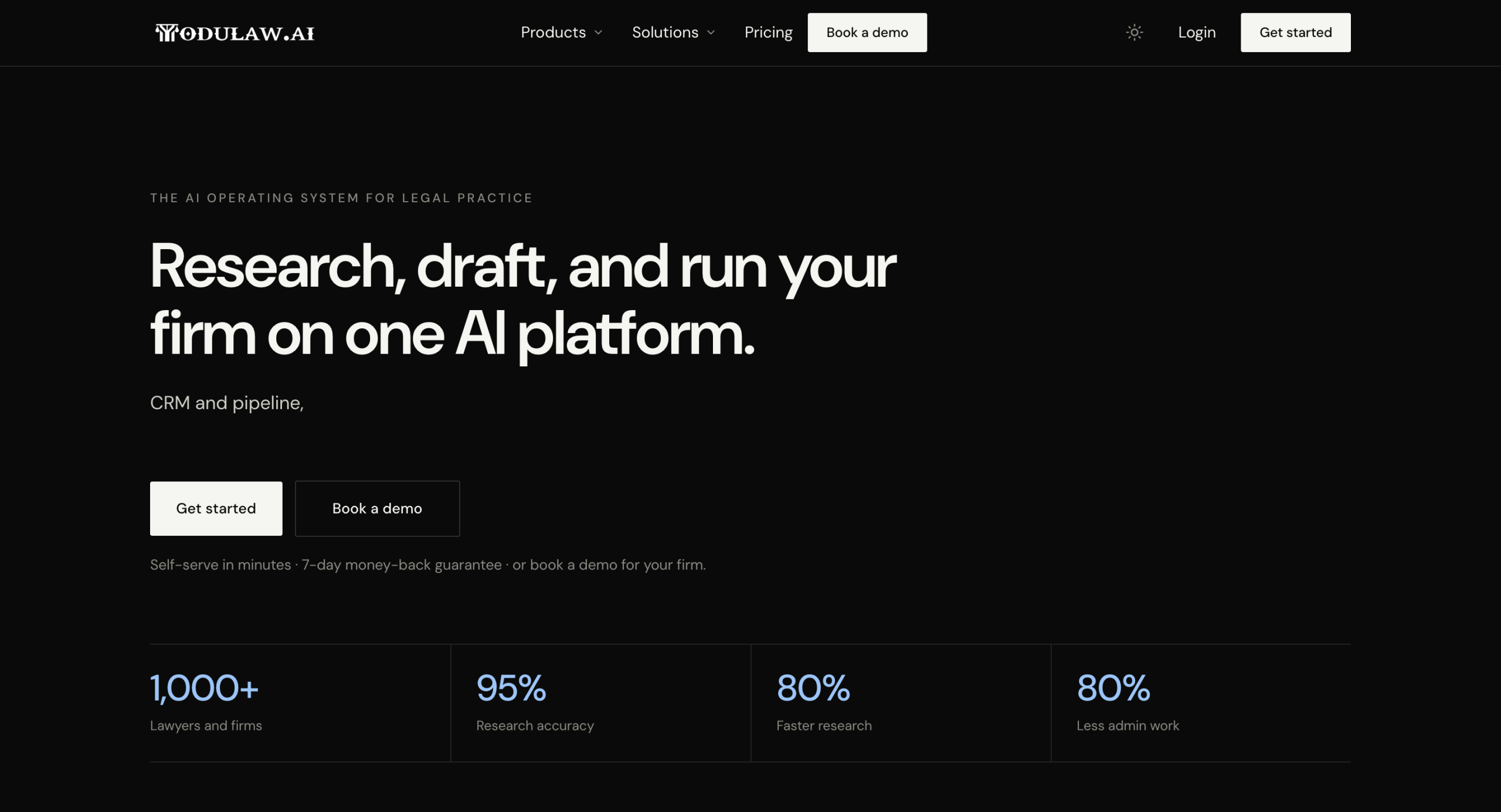
    Modulaw.ai is an AI-powered legal platform designed to simplify legal workflows. Whether you’re reviewing contracts, generating legal documents, conducting legal research, or collaborating with your team, Modulaw.ai brings all these capabilities together in one workspace.

    With Modulaw.ai, you can:

    • Review legal documents with AI assistance
    • Generate and edit contracts
    • Analyze legal risks and clauses
    • Organize documents in workspaces
    • Collaborate with colleagues securely
    • Access your work from a centralized dashboard

    The Modus Operandi of Modulaw.ai falls within these 10 functions, which are:

    1. Case management
    2. Law research
    3. Automation
    4. AI agents/employees
    5. Team Chat (similar to Slack)
    6. Voice Calls (Zoom Replacement)
    7. Bookings (Calendly)
    8. Client CRM
    9. Integration
    10. Document management system
    11. Intake system

    Before You Begin

    To use Modulaw.ai, ensure you have:

    • A supported web browser (Google Chrome, Microsoft Edge, Firefox, or Safari)
    • A stable internet connection
    • A registered Modulaw.ai account

    Creating Your Account

    1. Visit the Modulaw.ai website and click Get Started.
    2. Sign up using your Gmail account, or enter your email address and click Continue.
    3. A verification code will be sent to your email. Enter the code and click Verify Code.
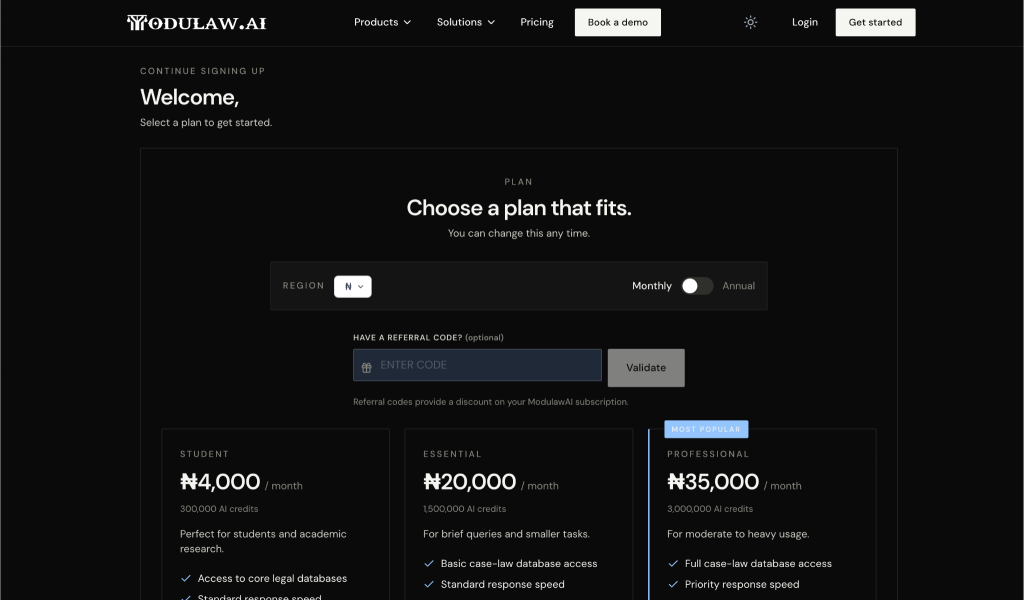
    4. Choose the pricing plan that best suits your needs. You can pay monthly or save more by selecting an annual subscription.

    Available Plans

    • Student — ₦4,000/month | 300,000 AI credits. Perfect for students and academic research. Basic case-law database access. Standard speed.
    • Essential — ₦20,000/month | 1,500,000 AI credits. For brief queries and smaller tasks. Full case-law database access. Standard response speed.
    • Professional — ₦35,000/month | 3,000,000 AI credits. For moderate to heavy usage. Full case-law database access. Priority response speed.
    1. Click Proceed to Payment and complete your purchase.
    2. After your payment is confirmed, set up your profile by providing the required information.
    3. Once your account has been created, you’ll be automatically redirected to your dashboard, where you can begin using Modulaw.ai.

    Signing In

    1. Navigate to the Modulaw.ai login page.
    2. Enter your registered email address.
    3. Enter your password.
    4. Click Log In.

    If you’ve forgotten your password, use the Forgot Password option to reset it.

    Navigating the Modulaw AI Interface

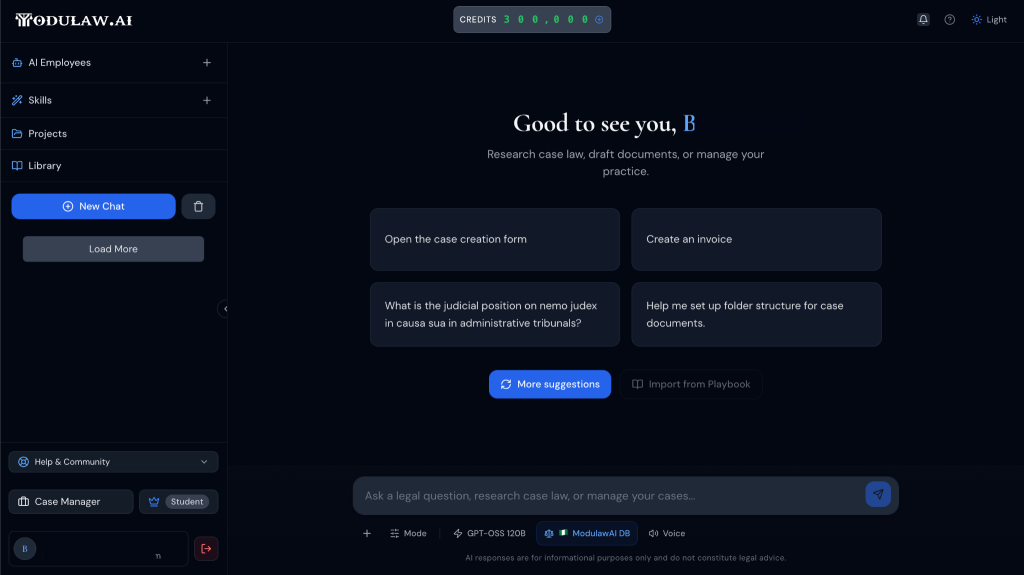
    After signing in, you will be directed to the Chat Interface, the primary workspace for interacting with Modulaw AI. From here, you can:

    • Create and manage AI Employees
    • Assign skills to enhance your Chat capabilities
    • Create and organize projects
    • Browse the Library for resources

    The Case Manager Interface

    Located in the lower-left corner of the application is the Case Manager (this is not available on the student plan) — the central workspace for managing your firm’s operations, cases, and administrative activities.

    The features available within the Case Manager depend on your organization’s subscription plan and your assigned permissions. Common sections include:

    • Dashboard — Provides a high-level overview of recent activity, important updates, and key metrics.
    • Cases — Organize and manage matters, clients, projects, assign tasks, set reminders etc.
    • Documents — Access, upload, generate, and manage documents associated with your work.
    • Financials — View financial information, monitor firm performance, and manage financial records.
    • Requisitions — Create, submit, and track requisition requests and supporting documentation.
    • Integrations — Connect Modulaw AI with third-party applications and services to streamline your workflows.
    • Time Entries — Track case progress, activities of staff, accessing recently viewed or edited items.
    • Settings — Configure your account, preferences, security settings, permissions, and other administrative options.

    Depending on your organization’s configuration, you may also have access to additional modules and capabilities designed to support your specific workflows.

    Tip: Spend a few minutes exploring both the Chat Interface and the Case Manager before continuing. Becoming familiar with the platform’s layout will help you locate features more quickly and work more efficiently throughout the application.

    Using the AI Assistant

    The AI Assistant allows you to ask questions about anything. It could be about documentation, for generating legal content, drafting processes etc.

    Examples include:

    • Summarize this agreement.
    • Identify potential legal risks.
    • Explain this clause in plain language.
    • Draft a confidentiality clause.
    • Compare two contract versions.

    For the best results, ask clear and specific questions.

    Getting Help

    If you need assistance while using Modulaw.ai:

    • Visit the Help Center.
    • Browse the documentation library.
    • Contact the support team through the support portal.

    Next Steps

    Now that you’re familiar with the basics, continue with these guides:

    • Quick Start Guide
    • Uploading Documents
    • Working with the AI Assistant
    • Managing Workspaces
    • Collaborating with Your Team
  • Create Your Account & Workspace for Modulaw.ai — A Step-by-Step Guide

    Create Your Account & Workspace for Modulaw.ai — A Step-by-Step Guide

    Welcome to Modulaw.ai — the AI-powered legal research and practice management platform built for legal professionals across Nigeria, the UK, the US, Canada, the EU, Ghana, Kenya, South Africa, and beyond. This guide walks you through creating your account and setting up your first workspace so you can hit the ground running.

    1. Getting Started — Sign Up

    Head over to modulaw.ai. On the landing page, you’ll see a “Get Started” or “Sign Up” button — click it to begin.

    1. Enter your details: Provide your full name, professional email address, and a secure password. We recommend using your work email so your workspace is correctly associated with your firm or practice.
    2. Verify your email: Modulaw will send a verification link to the email you provided. Check your inbox (and spam folder, just in case) and click the link to confirm your account.
    3. Complete your profile: Once verified, you’ll be prompted to fill in a few profile details — your jurisdiction, practice area(s), and bar association membership (if applicable). This helps Modulaw tailor its research results and recommendations to your specific context.

    💡 Tip: If your firm already uses Modulaw, ask your admin to invite you. You’ll receive an invitation email that bypasses the standard sign-up flow and drops you straight into the firm’s workspace.

    2. Understanding Workspaces

    A workspace is your dedicated environment within Modulaw. Think of it as your digital chambers or law office — it houses your cases, clients, documents, tasks, team members, and all your research activity. Every Modulaw account starts with at least one workspace.

    Key things to know about workspaces:

    • One account, multiple workspaces: You can create or join multiple workspaces — for example, one for your main practice and another for a specific matter or collaboration with co-counsel.
    • Workspace roles: Each member has a role — Owner, Admin, Lawyer, or Viewer — controlling what they can see and do.
    • Data isolation: Cases, documents, and communications in one workspace are completely separate from others. No cross-contamination.

    3. Creating Your First Workspace

    After signing up, Modulaw will guide you through creating your first workspace. Here’s what to expect:

    Step 1 — Name Your Workspace

    Choose a name that reflects your practice. This could be your firm name (e.g., “Fadahunsi & Co.”), your practice area (e.g., “Litigation Practice”), or a specific matter (e.g., “Adelaja Holdings Matter”). The name is visible to all workspace members, so pick something clear and professional.

    Step 2 — Select Your Primary Jurisdiction

    Choose the jurisdiction where you primarily practice. Modulaw supports:

    • 🇳🇬 Nigeria (NG)
    • 🇺🇸 United States (US)
    • 🇬🇧 United Kingdom (UK)
    • 🇨🇦 Canada (CA)
    • 🇪🇺 European Union (EU)
    • 🇬🇭 Ghana (GH)
    • 🇰🇪 Kenya (KE)
    • 🇿🇦 South Africa (ZA)

    Your primary jurisdiction determines the default case law and statute databases Modulaw searches. Don’t worry — you can always research across other jurisdictions when needed.

    Step 3 — Add Your Practice Areas

    Select the areas of law you handle — corporate, litigation, property, family, intellectual property, tax, criminal, and more. This helps Modulaw’s AI prioritise relevant results and suggest useful resources.

    Step 4 — Invite Your Team (Optional)

    You can invite colleagues right away by entering their email addresses. They’ll receive an invitation to join your workspace. You can also skip this step and add team members later from the workspace settings.

    Step 5 — Review & Create

    Review your workspace details and click “Create Workspace.” That’s it — your workspace is live!

    4. Navigating Your New Workspace

    Once your workspace is created, you’ll land on your Dashboard. Here’s a quick tour of what you’ll see:

    SectionWhat It Does
    DashboardYour home screen — shows KPIs, recent activity, overdue tasks, and case summaries at a glance.
    CasesCreate, view, and manage all your legal matters. Each case holds tasks, documents, notes, events, expenses, and invoices.
    ResearchThe AI-powered legal research interface. Search case law, statutes, and legal commentary across all supported jurisdictions.
    AI EmployeesAutonomous background agents that monitor your cases, check for new authorities, flag contract issues, and track compliance deadlines — even while you sleep.
    DocumentsStore, organise, and draft legal documents. The Canvas editor lets you create written addresses, briefs, contracts, opinions, and more.
    SettingsManage workspace members, roles, integrations (email, calendar, cloud storage), billing, and preferences.

    5. Connecting Your Integrations

    Modulaw works best when connected to the tools you already use. From Settings → Integrations, you can connect:

    • Email: Zoho Mail, Gmail, or Outlook — send and receive case-related emails directly from Modulaw.
    • Calendar: Google Calendar or Outlook — sync court dates, deadlines, and meetings.
    • Cloud Storage: OneDrive, Google Drive, or Zoho WorkDrive — attach files from your existing storage.
    • Communication: Africa’s Talking (SMS) and WhatsApp — communicate with clients through the platform.

    Each integration uses OAuth or API-key authentication — your credentials are encrypted and never shared.

    6. Creating Additional Workspaces

    Need another workspace? From your dashboard, click your profile icon in the top-right corner, select “Switch Workspace”“Create New Workspace.” Follow the same steps as above. You can switch between workspaces at any time from the same menu.

    7. Tips for a Smooth Start

    • Create your first case right away: Even a test case helps you explore the platform. Click “New Case” from the dashboard and fill in the basics — case title, client name, court, and suit number.
    • Run a research query: Try searching for a legal principle you’re currently working on. Modulaw’s AI will return relevant case law and statutes in seconds.
    • Set up an AI Employee: From the AI Employees section, create a Case Watcher to monitor a case for new authorities, or a Compliance Watcher to track regulatory deadlines.
    • Toggle Case Management Mode: When you’re ready to manage cases alongside research, enable Case Management Mode from the chat input toggle — this unlocks the full suite of practice-management tools.
    • Explore the knowledge base: Visit our help centre at modulaw.ai/help for more detailed guides and video walkthroughs.

    Need Help?

    If you run into any issues or have questions, our support team is ready to help:

    • In-app chat: Click the help icon (💬) in the bottom-right corner of any page.
    • Email: Reach us at support@modulaw.ai
    • Community: Join the Modulaw community forum to connect with other legal professionals using the platform.

    Welcome aboard — we’re excited to have you on Modulaw.ai! 🚀


    Last updated: 15 July 2026. This guide applies to Modulaw.ai version 2.0 and above.